Environment Configuration
PowerSwitch uses environment variables for configuration. Edit the .env file to customize your setup with your own values (or rename sample.env to .env).
Required Configuration
Gas and Electric URLs
You can get these from papowerswitch.com and pagasswitch.com
- GAS_URL: The URL for fetching gas power usage data.
- ELECTRIC_URL: The URL for fetching electric power usage data.
How to get the correct URL:
- Visit papowerswitch.com or pagasswitch.com
- Input your zip code
- Select your current power delivery company (e.g., PPL, PECO, etc.)
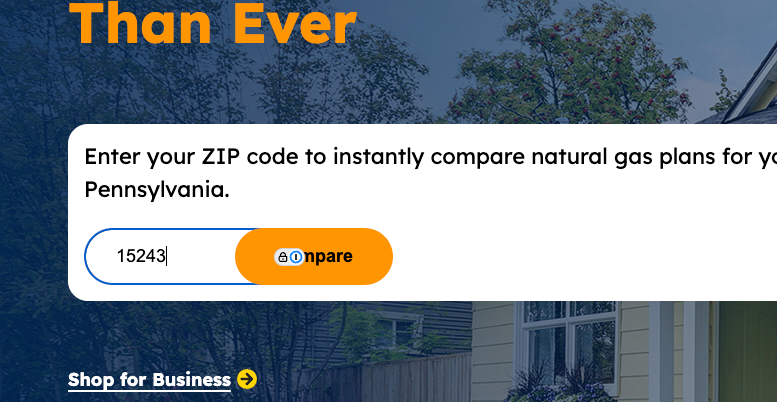
After that, you will be taken to a page with your current rates. Copy the URL from that page and paste it into the GAS_URL or ELECTRIC_URL environment variable.
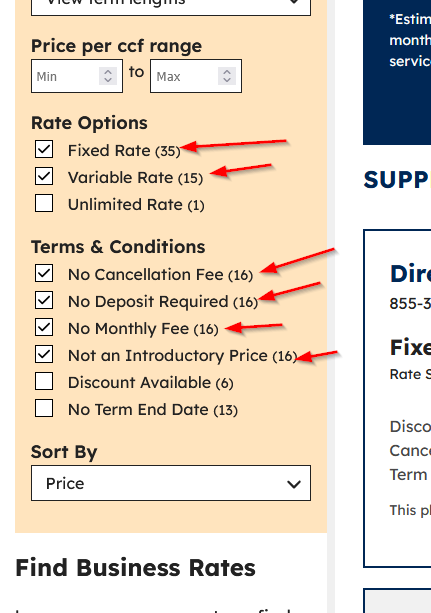
rate options and Terms and Conditions to filter out bad providers.
API Configuration
-
API_TYPE: The type of API to use for fetching power usage data.
- Default:
web - Options:
csvorweb
- Default:
CSV API Type:
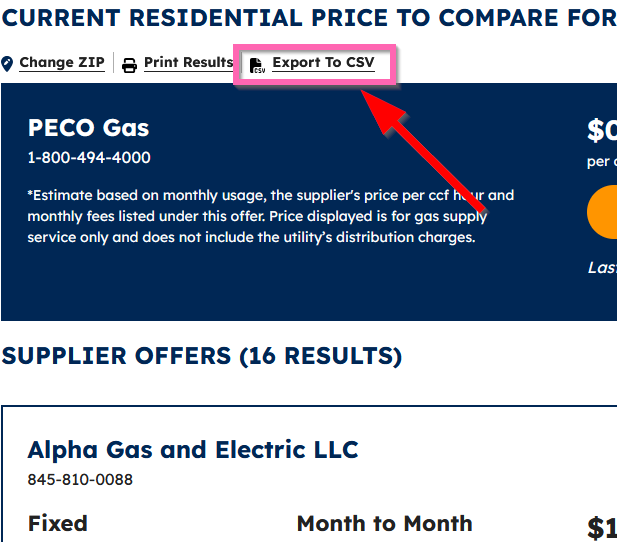
You will need to get the CSV link for each utility type:
- Right click on the CSV download link
- Select "Copy link"
Web API Type:
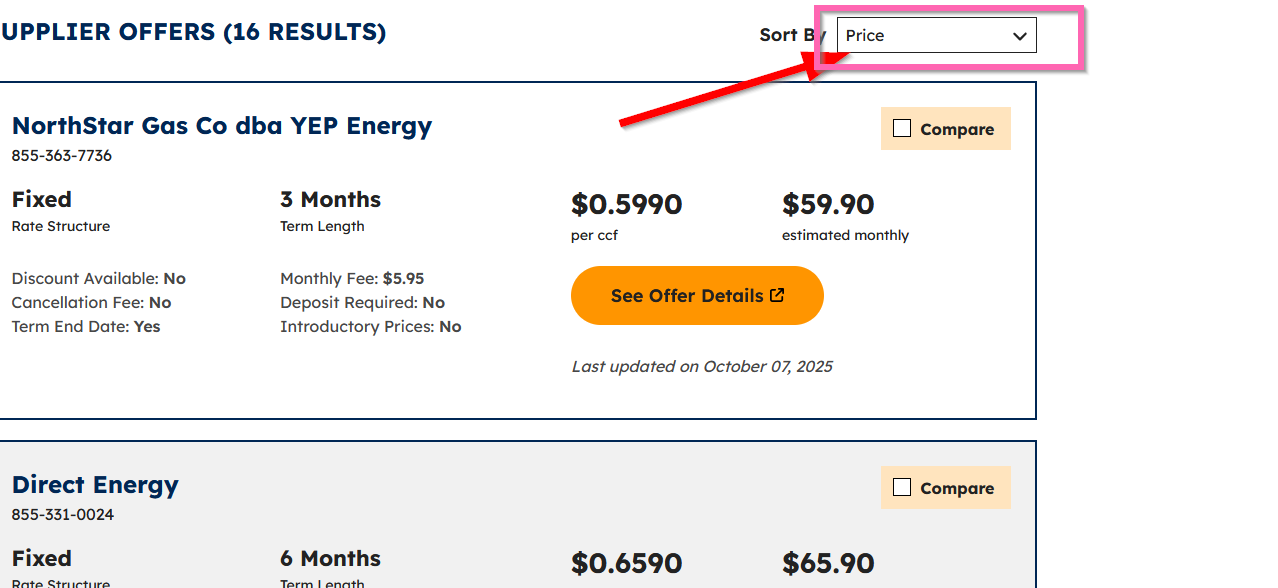
Make sure to sort by price and set the below filters, then copy the URL from the address bar. if you do not do this, you will not get the lowest rate for your area
Optional Configuration
Database Configuration
-
DB_TABLE: The name of the database table to store power usage data.
- Default:
powertable.db
- Default:
Scheduling Configuration
-
CRON_TIME: The cron schedule for running the power usage check.
- Default:
0 0 15 * *(15th of every month) - Format: Minute Hour Day Month Weekday
- Default:
Email Alerting Configuration
Currently, only gmail is supported as an email provider. PowerSwitch uses nodemailer to handle email sending. You will need to set up an email app password to use this correctly, as PowerSwitch currently only supports the App Password method for gmail login
take a look at nodemailer documentation for more information⚠️ I would HIGHLY recommend setting up a new gmail account just for this, rather than using your personal one.⚠️
- Create an app password by visiting here: https://myaccount.google.com/apppasswords Note: you will need to have 2fa set up
- Copy the password provided, remove the spaces
- Set GMAIL_PASSWORD in your .env file to the password from above
- Set GMAIL_USER in your .env file to your gmail username (aka you@gmail.com)

Example Configuration
Here's an example .env file with all available options:
# Required
GAS_URL=https://pagasswitch.com/your-gas-url
ELECTRIC_URL=https://papowerswitch.com/your-electric-url

# Optional
DB_TABLE=powertable.db
CRON_TIME=0 */6 * * *
API_TYPE=csv